
If you want a vocal practice routine you can actually stick to, the bottleneck is usually not apps — it is knowing what to do next. The MusicalBoard dashboard workflow puts Vocal Pitch Monitor, Vocal Spectrum, Online Metronome, Vocal Scales, Vocal Range Test, Virtual Piano, Singing Recorder, and Auto-Tune in a single browser tab. This article is not a feature tour. It is a 20-minute browser singing practice script: what to do in each time block, and what to look at on screen. If the tools are new to you, read The Complete MusicalBoard Guide first.
Why 20 Minutes Works
An hour a day is not realistic for everyone. Once you combine pitch, rhythm, scales, and a short recording, about 20 minutes is a honest minimum. Music educators often point out that short, regular sessions beat long, irregular ones for keeping skills steady (Music Teachers National Association). MusicalBoard is built to pack the feedback you need into that window on one screen.
The dashboard helps because you do not hop tabs — you open only the tools you need and stack them on one workspace. On desktop, pick tools from the right sidebar and each opens as a movable, resizable window. A layout you set once usually carries over the next time you open the site. Nothing is locked into fixed tiles: you can enlarge Vocal Pitch Monitor for a long tone, then pull Online Metronome to the front for a minute. Cutting the “where is my other app?” minute or two leaves more time for actual singing. On a phone or narrow screen, windows give way to a simple top-to-bottom flow — jot the order (warmup → range → scales → record) and work down the list.
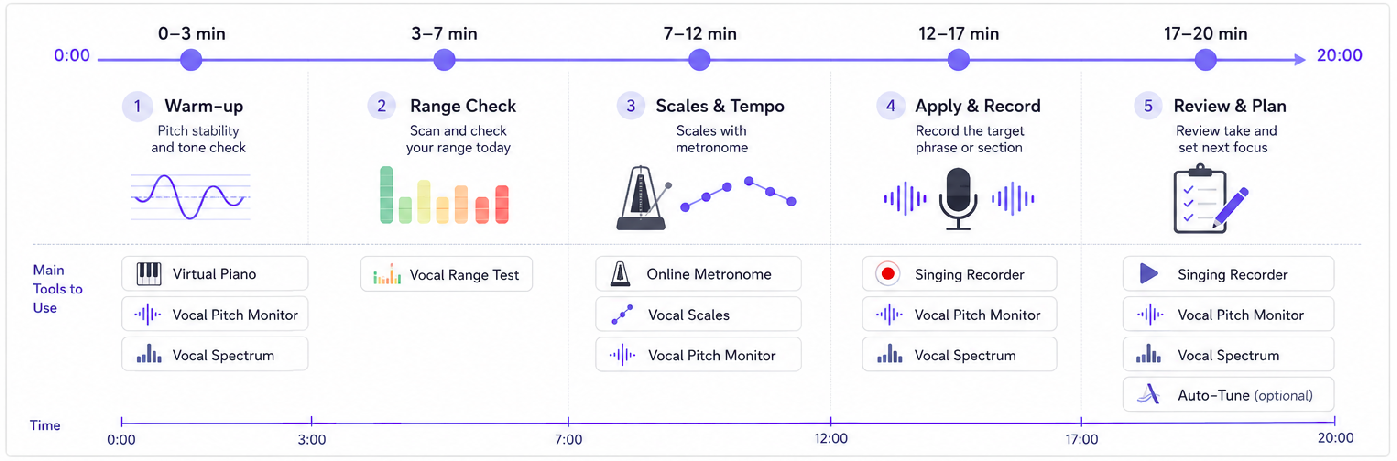
Split the 20 minutes into five blocks and bring the matching tool window to the front for each.
Before You Start — One Minute for Mic and One Tab
Open MusicalBoard home and allow microphone access. On desktop, open Vocal Pitch Monitor, Vocal Spectrum, Online Metronome, Vocal Scales, Vocal Range Test, Virtual Piano, and Singing Recorder from the sidebar (plus Auto-Tune if you might use it). Make the pitch monitor wide; overlap the metronome and scales windows so they are easy to peek at. You will spend less time rearranging during the 20 minutes. Analysis and recording stay on your device — practice audio is not uploaded to MusicalBoard servers (see the Privacy Policy). Headphones give a clearer picture of your own voice; speaker monitoring can feed back — see Hearing Your Own Voice While Recording. If you already know your song, note the tempo now so setting Online Metronome at minute 7 is faster.
0–3 Minutes — Warm-up: Pitch Stability and Tone Check
On Virtual Piano, play one or two comfortable notes (for example G or A in your middle range) and listen. Then watch Vocal Pitch Monitor while you hum or hold a vowel on the same pitch for 3–4 seconds. You only need to see whether the line sits on the target note or wobbles. New to the graph? What Is Pitch in Music? explains the axes in plain language.
Glance at Vocal Spectrum. If the level readout is very low, move a little closer to the mic; if it often spikes into clipping, back off slightly. Matching “too quiet / too harsh” by eye on the meter — not by guess — keeps the pitch graph steadier when you record later. Warm-up is not for pushing high notes; it is for checking whether today’s graph is trustworthy.
3–7 Minutes — Range Check: Scan What You Have Today
In Vocal Range Test, scan in half-step jumps. You do not need the full chromatic span — focus on the range your song actually uses and finish within these few minutes. After the session, the heat map shows green (stable), yellow (watch), and red (needs work) so you can see immediately which notes are a stretch today. Colors and session labels are explained in What Is a Vocal Range Map?.
On a tired day, a wide red band means adjusting later: transpose down a semitone or shorten the phrase you will practice. Basing the plan on today’s map beats forcing the same key every day and tiring your voice.
7–12 Minutes — Scales and Tempo: Scales with the Metronome
Set Online Metronome around 70–80 BPM. If you know the song tempo, How to Find the BPM of a Song, then practice at roughly 60–70% of that speed first. For a 6/8 ballad, match the metronome time signature to the song (Time Signatures Explained). For a 4/4 pop cover, stay in 4/4, turn on eighth-note subdivisions, and feel one scale step every two clicks.
In Vocal Scales, choose major or natural minor in a key that was mostly green on the map; one ascent and one descent is enough to fill five minutes. For pentatonic or blues patterns, stay inside what the map allowed that day (A Singer's Guide to Scale Practice). The tool has no repeat-count input. Restart playback for two or three passes, and stop when you have finished your planned repetitions.
The point here is whether the Vocal Pitch Monitor line follows each scale degree. If one note sags, it may be breath or vowel shape (Why You Sing Flat) — match that note on Virtual Piano and try it a few times before continuing the scale. If a note shoots sharp, do not push more air; sing it softly twice, then return to the pattern. When rhythm slips, listen for the click and check that the first syllable lands on the beat (How to Use a Metronome Effectively).
12–17 Minutes — Apply and Record: Your Target Phrase
Use Singing Recorder for one hard section — about 8–16 bars, not the full song. Vocal Pitch Monitor and Vocal Spectrum still run while you record, so mark where the line jumps instead of relying on playback alone. Practicing from an uploaded file? Follow the same steps in Upload, Play Back, and Compare Vocal Takes in the Browser.
Turn on the Online Metronome click before you sing so the take does not drift. You can upload a backing track from the Singing Recorder top controls, but in week one metronome only keeps feedback easier to read. Sessions can record up to ten minutes; here, two short takes of one or two minutes are easier to review than one long pass. Choosing an Export Format for Practice Vocals matters only when you move files elsewhere.
With a spare minute, open Auto-Tune on the same take and see how far pitches moved on the roadmap — not to ship a polished track, but to spot large gaps = tomorrow’s pitch focus. Steps are in How to Auto-Tune Your Vocal Take in the Browser.
Common Mistakes in This Routine
Skipping 0–3 minutes and jumping to high scales — then ignoring a red map. Using Vocal Pitch Monitor only after recording and losing live correction. Reading every on-screen paragraph inside the 20 minutes instead of graphs, clicks, and colors. Rebuilding the whole layout every session instead of keeping one that works. Treating an Auto-Tune pass as “done” — the corrected take is a reference; your real habit is still in the raw recording.
17–20 Minutes — Review and One Line for Next Time
Play the take back and note where the pitch graph wavers — one line is enough (“high note around 2:15”). That line picks tomorrow’s scale key in the 7–12 block. If high notes show a harsh splash in Vocal Spectrum, try a slightly narrower vowel or a smaller mouth opening at the next warmup. Uneven vibrato on a long tone? See What Is Vibrato and How Do You Develop It and even out the wave on the graph before speeding up the song.
After a week, watch red areas turn yellow or green. Knowing accuracy and coverage on the intonation heat map helps you say “pitch was fine but I did not cover many notes” (The Vocal Intonation Map). That shift is the simplest sign the work in What Is Vocal Intonation is sticking. A phone note like “3/6 F4 flat” is enough to set tomorrow’s warmup note.
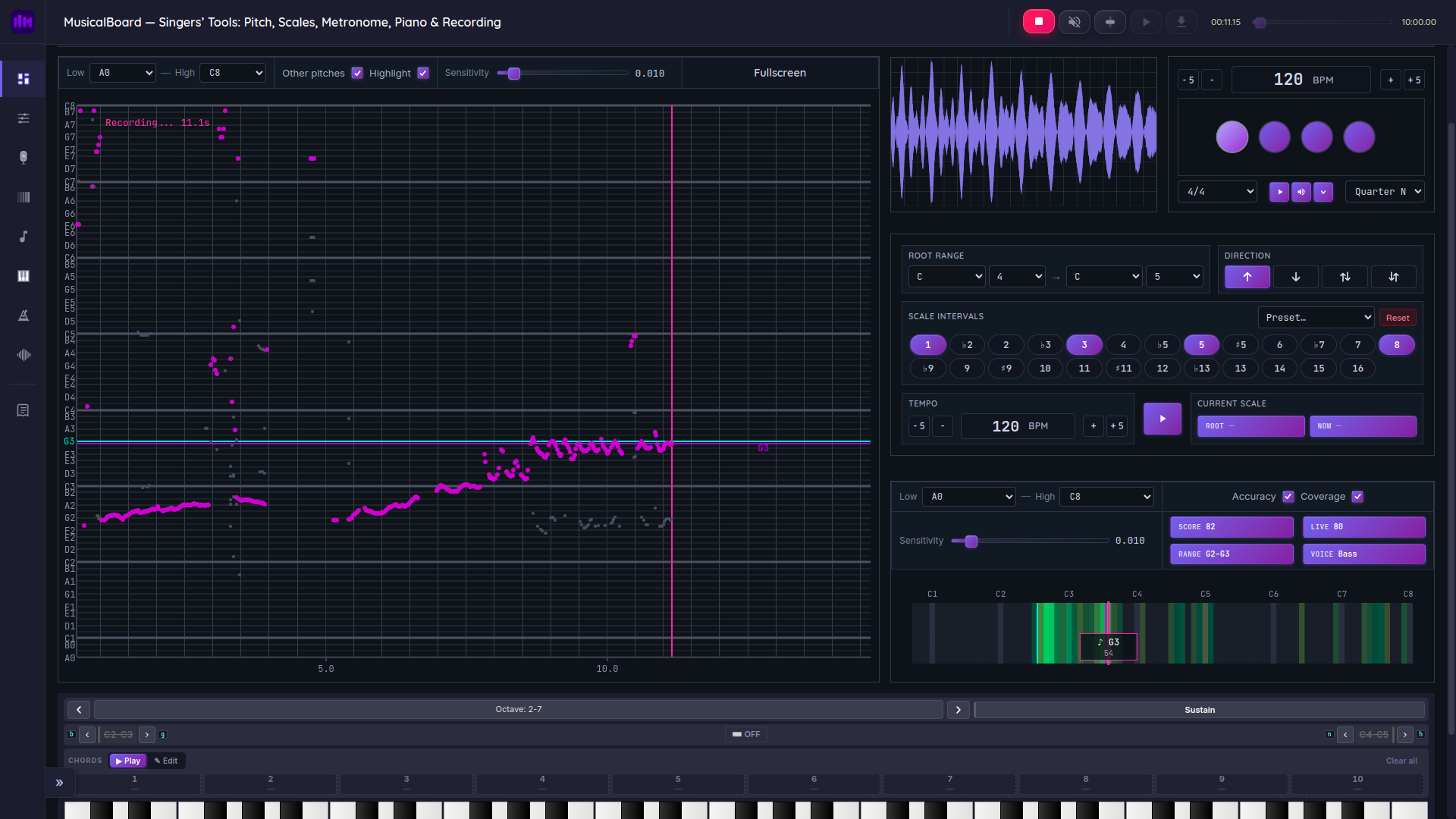
Each step, bring that tool forward; keep the pitch graph visible whenever you can.
Practicing Two or Three Times a Week — Trim Inside 20 Minutes
Short on time? Keep 3–7 (range) and 12–17 (record); cut scales to three minutes, ascent only. Weak rhythm on your song? Stretch 7–12 to eight minutes, start recording at minute 15, still 20 total. Auto-Tune does not need to be daily — open it after the take that was wildest this week.
Example — One Pop Chorus in 20 Minutes
Song in B♭ major, chorus at 96 BPM. 0–3: B♭ on Virtual Piano, match the line on Vocal Pitch Monitor. 3–7: Vocal Range Test near the chorus top. 7–12: Online Metronome at 72 BPM (~75%), B♭ major scale up and down. 12–17: four bars of the chorus in Singing Recorder. 17–20: playback — e.g. “keeps dipping below F4” — next day, a small pattern centered on F. One phrase, one note to fix: that is a browser singing practice loop you can repeat.
Practice on the MusicalBoard Dashboard Today
Stay on MusicalBoard home and follow the blocks above. A timer set to 3 · 4 · 5 · 5 · 3 minutes keeps you honest about fitting scales in. Window titles and sidebar links open full pages for Vocal Pitch Monitor, Vocal Spectrum, Online Metronome, Vocal Scales, Vocal Range Test, Virtual Piano, Singing Recorder, and Auto-Tune — but week one, stay on the dashboard.
Later, enlarge Vocal Scales only, or loop a hard bar on the Singing Recorder page (Using the Playback Bar in Vocal Practice). Deeper reads like Playing Piano in Your Browser Without a MIDI Keyboard or Bar, Line, and Circle Spectrum Views can wait until the routine feels automatic.
When the timer stops, you only need one recording and one line (“fix F4 tomorrow”). That line sets the next scale key and metronome speed; a dashboard layout you already arranged lets the dashboard workflow continue in the same order tomorrow.
References