
Listening to your own voice through headphones while you record is called vocal monitoring. In a proper studio it's just standard practice, but when you're practicing on your own it's easy to not really know how it works or why you'd want it in the first place. This post walks through what monitoring actually does for your singing practice, why latency happens and what it costs you, and how to set it up safely in the browser using Singing Recorder.
Why Your Voice Sounds Different in Recordings
The voice you hear while you're singing and the voice the microphone picks up are not the same thing. Sound reaches your ears through two separate paths.
One is through the air — sound waves traveling outward and into your ear canal. The other is through bone conduction, where vibrations travel directly through your skull to the inner ear. That bone conduction path is why your own voice feels richer and fuller to you than it does to anyone else listening. The microphone only captures what's floating in the air, so when you play back a recording, your voice often sounds thinner or more nasal than you expected. That "wait, is that really me?" reaction is completely normal.
For practice, this has a real implication. If you're only going by what your ears tell you in the moment, you might be singing slightly flat and it'll feel perfectly natural. Small pitch drifts are easy to miss. Recording yourself or monitoring through headphones makes the difference obvious pretty fast.
When Vocal Monitoring Actually Helps
Monitoring is a way to hear "what does my voice sound like right now" in real time. It's especially useful in these situations:
Catching pitch drift early. Headphone monitoring adds the microphone signal to your live self-voice; it does not remove bone conduction. It may help you hear drift, but delay or a distracting mix can make practice harder. Turn it off if it disrupts you, and use playback as a separate check.
Noticing breath noise. Audible inhales, sibilance, and plosives can be louder in the recording than they feel while singing. With monitoring on, you can adjust your mic distance or angle on the spot rather than discovering the problem after the fact.
Legato connections. Phrases that feel connected as you're singing them sometimes aren't. Monitoring gives you a real-time check on whether those joins are actually smooth.
Timing check. When you're practicing without accompaniment, it's harder to gauge your own rhythmic consistency. Pull up Online Metronome alongside Singing Recorder, and you can hear the click and your voice together in the headphones — any drift stands out immediately.
That said, monitoring isn't for everyone in every situation. Some singers find that hearing themselves in real time disrupts focus, or creates a feedback loop where you're constantly reacting to the sound instead of just singing. If that's you, recording without monitoring and listening back afterward is a completely valid approach.
What Latency Is and Why It Matters for Singing
The most common complaint about monitoring is latency — the delay between a sound entering the microphone and you hearing it back through the headphones. Too much of it and monitoring becomes more hindrance than help.
Where the Delay Comes From
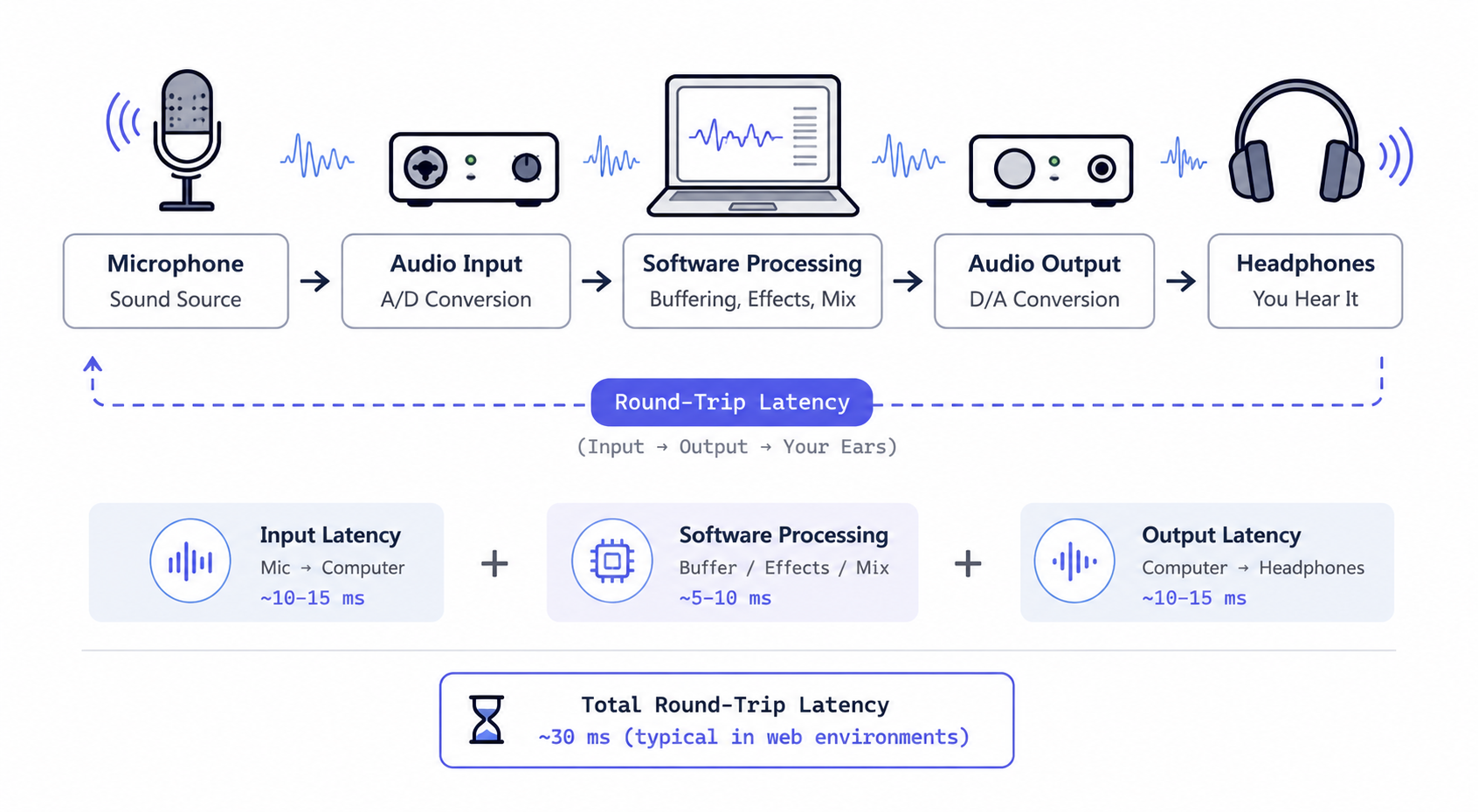
The signal chain goes like this: microphone captures sound → analog-to-digital conversion → software processing → digital-to-analog conversion → headphone output. Each stage takes a little time. Add them all up and you get the round-trip latency.
Browser monitoring delay depends on the input device, driver, OS, browser, and output device. AudioContext’s baseLatency and, where supported, outputLatency describe parts of that path; neither alone measures the entire microphone-to-headphone round trip. MusicalBoard does not measure a fixed 30 ms monitoring delay. Test with your actual headphones and interface before using monitoring for timing practice.
How Monitoring Delay Can Affect Practice
A delay of tens of milliseconds can be noticeable while singing, but tolerance varies by singer and task. A direct-monitoring audio interface can reduce the monitoring path compared with browser routing. If you hear a distracting echo or your timing changes, use direct monitoring if available or turn browser monitoring off and review the recording afterward.
The reason it matters is that your brain predicts when it will hear your own voice and continuously compares that prediction against the actual incoming signal. When the timing is off, your sense of rhythm gets destabilized — particularly on fast passages or phrases where precise consonant timing is important.
Try browser monitoring first on a short, easy phrase at low volume. If the returned voice distracts you, turn monitoring down or off, even for a slow line. Wired headphones avoid the extra delay common with Bluetooth, but do not guarantee a particular round-trip time.
Round-trip latency is the sum of input delay, software processing time, and output delay.
Left to right: microphone, monitor on/off, monitor volume, play/pause, volume, delete
Why You Should Never Monitor Through Speakers
If monitoring is active and you're using speakers instead of headphones, you'll get a feedback loop. The microphone picks up the sound coming out of the speakers, amplifies it, sends it back out, and the microphone picks it up again — that familiar howling squeal. It builds fast.
Monitoring must be used with headphones. Wired earbuds are the safest option. Start the headphone volume low — somewhere around 20–30% — and only bring it up to a comfortable listening level. If it's too loud, the monitoring signal pulls your attention away from actually singing. If headphones aren't practical in your current situation, just leave monitoring off and listen back after you're done.
Setting Up Monitoring in Singing Recorder
The Singing Recorder control bar has two buttons related to monitoring:
Speaker icon (monitor on/off). Click it and your microphone input routes directly to your headphones. Click again to turn it off. Your preference is saved even if the mic isn't active yet — the setting applies automatically once you start recording.
Volume slider icon (monitor output level). The small icon next to the speaker opens a slider panel. Drag it anywhere from 0% to maximum; the percentage is shown alongside it. The value is saved in your browser's local storage, so it persists between sessions.
Here's a straightforward setup sequence:
- Plug in headphones.
- Click the microphone icon to start recording. Allow the browser permission prompt if it appears.
- Click the speaker icon to enable monitoring.
- Open the volume slider and start around 20–30%, then adjust to a comfortable level.
- Sing, and pay attention to how your pitch and breathing actually sound. Lower the volume or turn it off if it's getting in the way.
Note for iOS/Safari Users
On iOS in Safari, audio sometimes doesn't activate immediately after the page loads. If that happens, allow the microphone permission and then tap the mic button once more — that usually does it.
The Difference Between Monitoring and Playback
These two things are easy to mix up. In Singing Recorder, "monitoring" and "playback" are distinct features:
- Monitoring: Routes live microphone input to your headphones in real time. Only relevant while recording is active.
- Playback: Plays back what was recorded after you've finished. The microphone is inactive during playback.
Monitoring answers "how am I singing right now." Playback answers "how did I just sing." Both are useful for pitch checking, but at different moments. If you open Vocal Pitch Monitor in another tab, you can see the pitch graph updating in real time while monitoring is on — ears and eyes at once.

Left to right: microphone, monitor on/off, monitor volume, play/pause, volume, delete
Is It Fine to Record Without Monitoring?
Absolutely. Monitoring isn't a requirement. Here's when skipping it makes sense:
- Fast passages. 30ms of delay can genuinely interfere with rhythmic feel on up-tempo material.
- No headphones, or inconvenient to wear them. Don't try to monitor through speakers — feedback risk is real.
- You find yourself reacting to the sound instead of just singing. Some people perform more naturally when they're not hearing themselves in real time. If monitoring is making things worse, it's not the right tool for you.
- Quick run-throughs. If you just want to get through a section without overthinking, having monitoring on creates an extra layer of self-consciousness. Turn it off for those passes.
On the other hand, monitoring is most useful for slow melodic pitch checks, breath noise adjustment, and legato connection review. If the 30ms delay isn't bothering you in the browser environment, leaving it on by default is a reasonable choice.
Using Monitoring Alongside Other MusicalBoard Tools
The monitoring feature in Singing Recorder gets more useful when combined with other tools on the MusicalBoard dashboard:
- With Vocal Pitch Monitor: Hear through headphones, watch the graph on screen. You'd be surprised how often something that feels on pitch shows up as drifting on the graph.
- After Vocal Range Test: Use Vocal Range Test to find where your voice is stable today, then practice within that range with monitoring on. It's a good way to avoid pushing into territory that's going to cause strain.
- With Vocal Spectrum: Vocal Spectrum visualizes how your harmonic content shifts at chest-to-head voice transitions. With monitoring running alongside it, you can hear and see that crossover point at the same time.
- After checking pitch on Virtual Piano: Hit a reference note on Virtual Piano, then run scales with monitoring active. It's a quick and pretty efficient way to drill pitch accuracy on a specific interval or range.
Once you've finished a recording, you can drag the progress bar directly to any point to jump to a specific moment. If something sounded off around a particular bar, scrub to it, listen back, then flip monitoring on and sing through that section again. It's a tight loop for targeted pitch work.
Monitoring can feel like a complicated concept at first, but it really comes down to one question: do you want to hear your voice while you're recording it, or after? Either way works. The fact that you can answer that question from a single browser tab is the practical point.