
You don't need a piano. You don't need a MIDI keyboard. If you have a browser, you can start playing right now. Virtual Piano is a browser-based piano on MusicalBoard that runs instantly — no installs, no plugins. You can play with a mouse click, a smartphone tap, or even your regular computer keyboard, and since it uses actual piano samples, it's genuinely useful for pitch reference and vocal warm-ups.
This guide covers how to use Virtual Piano, when it actually comes in handy, and how it fits into a broader vocal practice setup.
Three Ways to Actually Play It
Mouse and Touch
Click or touch a key to play its piano sample. With Sustain off, releasing it schedules a stop after roughly half a second. With Sustain on, the sample continues decaying until it ends; it does not become a looping oscillator. Touch uses the same note playback on phones and tablets.

Mouse or touch is all you need — no extra hardware required.
Each key is labeled with its note name (C4, D4, and so on), which makes it easy to orient yourself even if you're not familiar with piano key layouts yet.
Computer Keyboard Mode (⌨ Mode)
Click the "⌨️ OFF" button on screen, or press the apostrophe key (') on your keyboard, to switch into keyboard input mode. From there, your regular keyboard becomes a piano.
The layout is split into two hand zones. The left-hand area uses the bottom row (z, x, c, v, a, s, d, f) and part of the top row (w, e, r, t, y). The right-hand area covers the middle row (m, ,, ., /, j, k, l, ;) and upper row (u, i, o, p, [). Each zone covers 13 notes in chromatic order — just over one octave — so you can split a melody across both hands the way you naturally would on a real piano.
When keyboard mode is on, each key on screen shows a small label indicating which keyboard key triggers it. It feels awkward for the first few minutes, but the layout starts to make physical sense pretty quickly.

In ⌨ mode, each piano key shows its corresponding keyboard shortcut.
Adjusting Octave and Starting Note
The default maps the left hand to C2–C3 and the right hand to C4–C5. To shift octaves, use - (left hand down), _ (left hand up), = (right hand down), or + (right hand up).
You can also shift the starting pitch. b moves the left-hand mapping down a semitone; g moves it up. For the right hand, n is down and h is up. So if you're playing a piece in G major and want the white keys to line up with the G scale, just shift the mapping to start on G — it makes the fingering feel much more natural.
Spacebar acts as sustain. Hold it and notes will ring out; release it and they fade.
Chord Slots — Save Your Frequently Used Chords
At the top of the screen, there are ten numbered chord slots (1–10). You can save any combination of notes to a slot and trigger them all at once with a single button press.
Here's how: click the "Edit" tab, select the slot number you want to fill, then click each key you want in the chord. A number badge appears on the slot button to show how many notes are stored. Switch back to the "Play" tab, and pressing that slot button will sound all the stored notes simultaneously.
In keyboard mode, number keys 1–9 and 0 map directly to slots 1–10. So if you save an Am chord to slot 1, pressing 1 fires the chord immediately. The slots are saved to your browser's local storage, so they'll still be there next time you open the page.
Where Virtual Piano Is Actually Useful for Vocal Practice
Finding Your Starting Note
The hardest moment in unaccompanied singing is often the very first note. Even if you know the song starts on C4, actually pulling that pitch out of thin air is trickier than it sounds.
Click that note on Virtual Piano, listen for a second, then start singing without the piano. Do this consistently and you'll stop fumbling the opening of songs. Over time, it also builds real pitch memory — not perfect pitch necessarily, but a reliable internal sense of where notes live.
Mapping Your Vocal Range
Virtual Piano is a straightforward tool for figuring out where your voice tops and bottoms out. Start from a low note and work your way up one key at a time, matching each pitch with your voice. When things start to strain or feel forced, you'll know exactly which note you're on because it's labeled right there on screen.
Pairing this with Vocal Range Test makes it more precise. The range test visualizes how steadily you're hitting each pitch with color feedback. A good workflow: use Virtual Piano to get a rough sense of your range, then use Vocal Range Test to nail down the exact edges.
Pitch Training — Drone Practice
For reference-note matching, play A4 with Sustain enabled and sing against the sample as it decays. A chord slot stores the notes for convenient replay; saving a note there does not make it sound continuously. Replay when the sample ends. This piano provides finite sampled notes, not an endless drone.
Running Vocal Pitch Monitor alongside makes this dramatically more effective. You can see in real time whether your voice is sitting on the right frequency, slightly above it, or drifting below. Watching the graph while you adjust is much faster than relying on your ears alone, especially early on.
For more structured work, add Vocal Scales to the mix. Play a scale pattern, watch the Pitch Monitor, and notice exactly which notes cause your line to dip. That pinpoints the specific intervals you need to work on, rather than just doing general scales and hoping something improves.
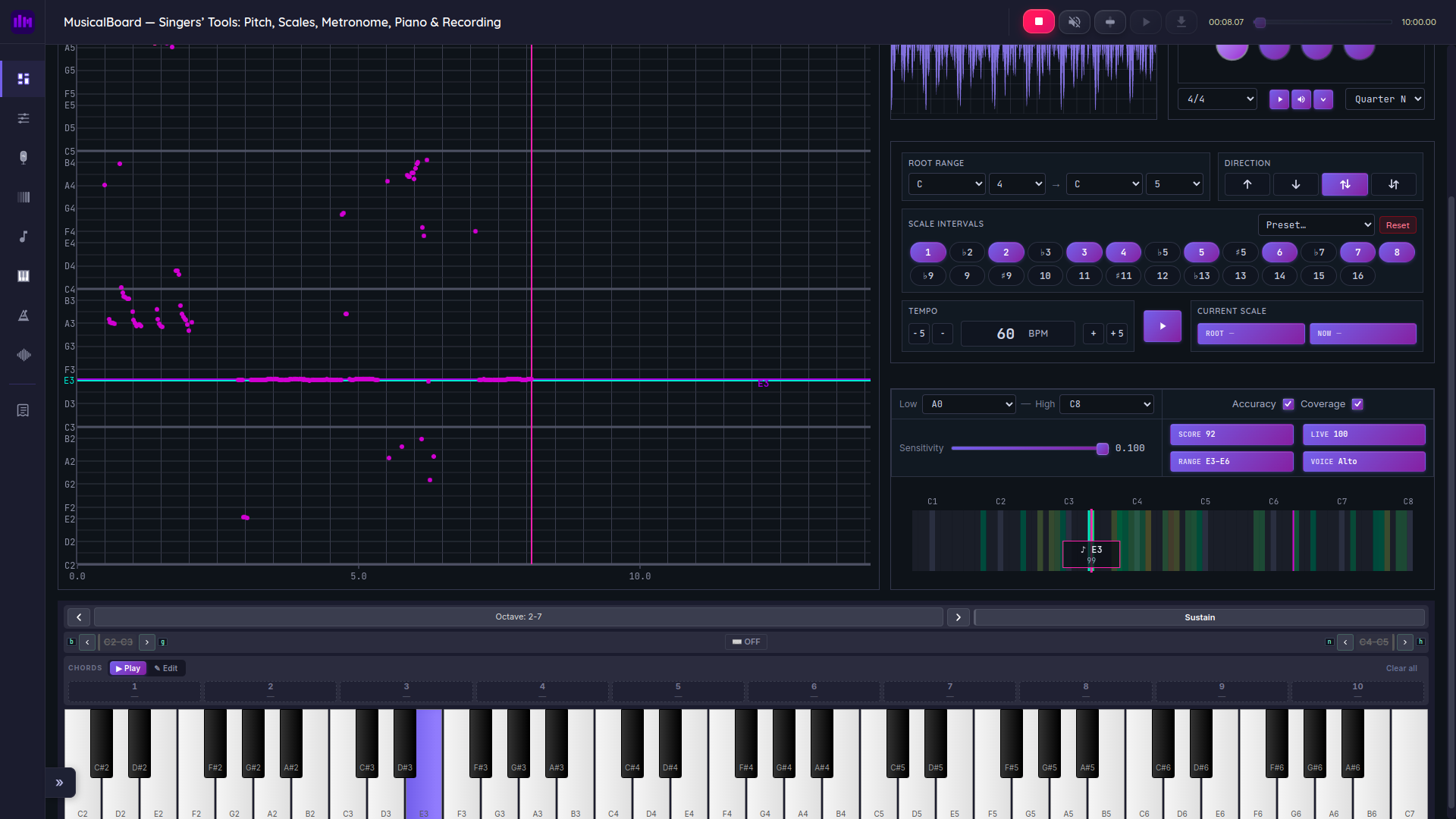
Set a reference pitch with Virtual Piano, then check your intonation in real time with Pitch Monitor.
Drilling Problem Intervals
When a specific interval in a song keeps going flat or sharp, slow it down and isolate it. If you're consistently undershooting a G4-to-C5 leap, try this: click G4, listen, then sing C5 without the piano. Then click C5 to check. Repeat slowly. Your ear starts to internalize the size of that jump in a way that generalized practice doesn't really give you.
Things Worth Checking When You First Open It
A few features are easy to miss on the first visit.
Octave display and arrows: There's an "Octave: 2–6" indicator at the top with arrow buttons. Left shifts the visible keys down an octave; right shifts them up. Worth setting this to your own range before you start.
Left/right hand range indicators: In keyboard mode, the two zones are color-coded, and each one shows its current mapping range (like C2–C3 or C4–C5). The arrow buttons next to each zone let you shift in semitone increments.
Sustain button: If you want a note to keep ringing after you click and release, turn on sustain. Useful when you're trying to sing into a held pitch without having to keep a finger on the mouse.
Chord slot status: Empty slots show a dash (—); filled slots show a number badge. In the Edit tab, "Clear N" removes a single slot, and "Clear all" resets everything.
A Quick Note on Note Names and Octave Numbering
The labels on Virtual Piano's keys follow Scientific Pitch Notation — C4, D4, A#3, and so on. It's an international standard defined by the Acoustical Society of America (ASA). The number after the letter name is the octave, and middle C is C4.
Each octave on a piano keyboard runs from C to B. Middle C sits near the center of an 88-key piano, and A4 is tuned to 440 Hz — the universally accepted standard reference pitch (ISO 16:1975). In terms of general vocal ranges, male voices typically cover E2–C5 and female voices A3–C6, though there's plenty of variation.
Using Virtual Piano as Part of a Broader Practice Routine
Virtual Piano works best when it's one piece of a larger setup rather than a standalone tool.
Start simple — just click around with the mouse and get familiar with where different pitches are. Pay particular attention to intervals you use a lot: octaves, fifths, major and minor thirds. The more you hear them in isolation, the easier they become to find when you're singing.
Once keyboard mode feels natural, try turning on Online Metronome and playing simple melodies in time. Start around 70 BPM and raise it gradually once things feel steady.
For a vocal-focused workflow, this sequence holds up well: check your starting pitch on Virtual Piano → open Vocal Pitch Monitor and match the pitch with your voice → run through scales with Vocal Scales → record a short phrase with Singing Recorder and listen back. Everything lives on the same site, so there's no tab-switching involved.
Wrapping Up
Not having a piano or a MIDI keyboard stops being an excuse once you know about Virtual Piano. Whether you're hunting for a starting pitch, drilling an interval, or just checking where your voice cuts out at the top — it handles all of that without any setup.
Start with the mouse, try keyboard mode when you're ready, and experiment with chord slots once the basics feel natural. The tool doesn't need to be complicated. If it lets you hear the note you need and match your voice to it, it's doing its job.
References