
If you've been searching for free vocal practice tools, chances are you've already run into the same frustration — decent DAWs cost money, the good pitch apps want a monthly subscription, and getting vocal pitch monitor, vocal range test, scale generator, and a metronome in one place usually means bouncing between three or four different pieces of software. MusicalBoard is a browser-based platform that puts all of that on one screen, for free, with nothing to install. This guide walks through what the platform actually is, what each of the 7 tools does in practice, and how they work together.
What Is MusicalBoard — When Your Browser Becomes a Studio
No Setup, No Waiting — Start Right Now
There's genuinely no setup involved. Chrome, Firefox, Safari — whichever browser you're already using works. You land on the page, allow microphone access, and everything is running. No app store, no installer, no account, no email confirmation.
That probably sounds like a small thing, but it matters more than you'd expect for something you're supposed to do every day. The window where you're actually motivated to practice is narrow, and it's easy to lose it while a download finishes or you try to remember which email you used to sign up for something. Removing that friction entirely changes how often you actually sit down and do the work.
Real-Time Response — Feedback the Instant You Sing
What makes MusicalBoard useful rather than just convenient is that the pitch graph responds while you're still singing the note. Not a second later — while you're holding it. That distinction matters a lot. A reading that appears after the fact tells you what happened; a reading in real time lets you fix it before you've moved on.
You can watch the line on the graph while you're sustaining a note, see whether it's sitting where it should be, and make adjustments without stopping. If you've only ever used your ears to judge your own pitch, the graph will probably surprise you a few times early on.
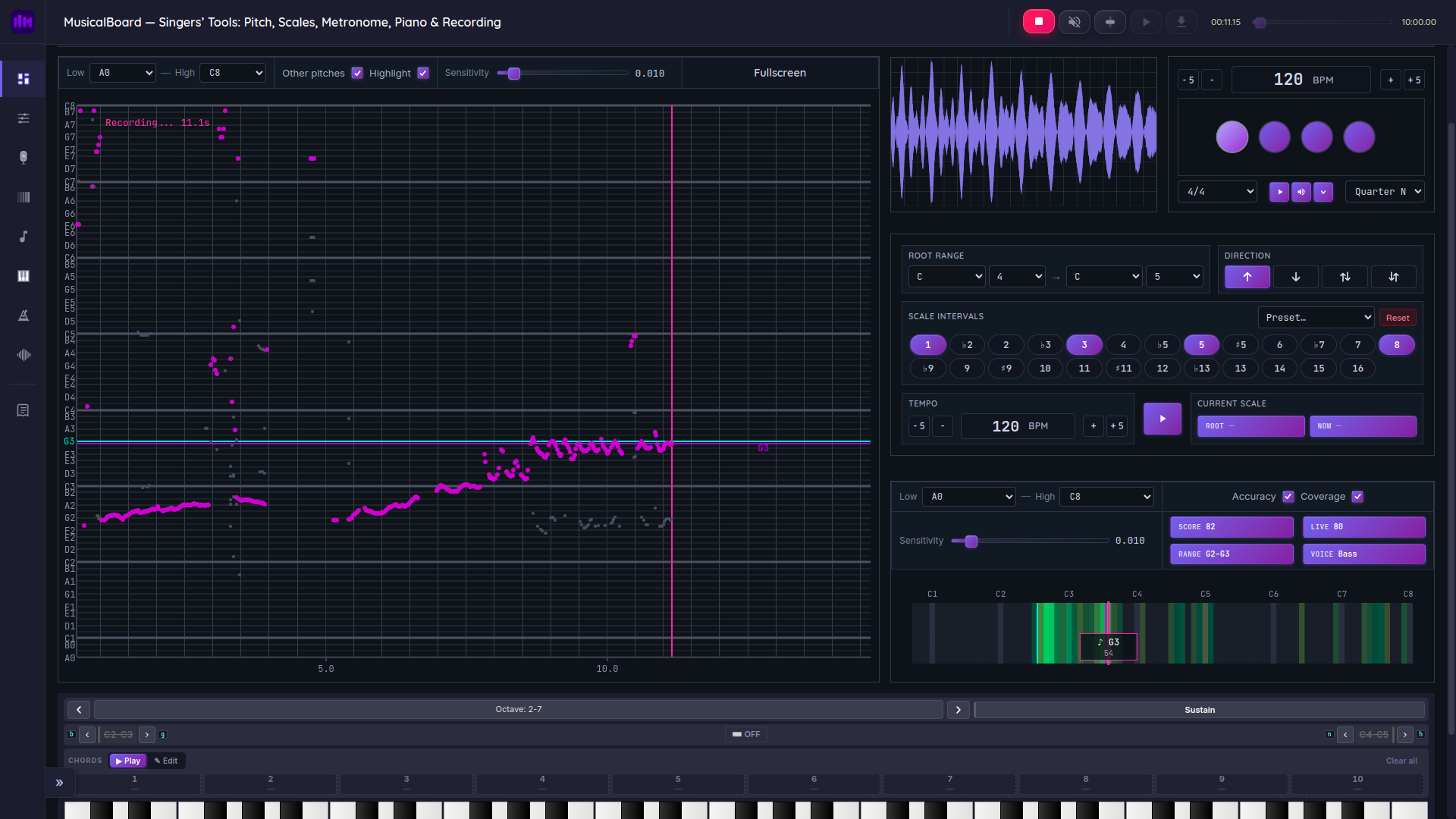
MusicalBoard dashboard: 7 vocal practice tools integrated into a single screen
Audio Privacy — Your Voice Stays on Your Device
It's a fair question whenever you're giving a website microphone access. Everything MusicalBoard processes from your mic stays on your own device — none of it goes to a server. You can actually test this: load the page, allow mic access, then disconnect from the internet. Everything keeps working. Your voice isn't being stored or transmitted anywhere.
Dashboard Layout — A Space That Mirrors How You Practice
MusicalBoard uses a grid layout that's responsive across screen sizes. The Vocal Pitch Monitor is the largest element — it's clearly the thing you'll be looking at most. Vocal Spectrum, the Online Metronome, Vocal Scales, and the Vocal Range Test fill in around it, and the Virtual Piano runs across the full bottom of the screen.
The positioning loosely follows a practice logic: check your pitch, look at your tone, keep time, run scales, check your range, find a reference note. You're not hunting for the next tool — it's already on screen.
The 7 Tools, One by One
Vocal Pitch Monitor — See Your Pitch in Real Time
The Vocal Pitch Monitor shows your voice's pitch as a moving line graph in real time. Time runs left to right on the horizontal axis; pitch — labeled with note names like C, D, E — runs vertically. Sing, and the line moves.
The reason this is useful goes back to something most singers don't think about: your own voice sounds different to you than it does to everyone else. Bone conduction through your skull colors what you hear, and the effect is usually that you perceive yourself as slightly flatter than you actually are. The flip side is that when you are flat, you might not catch it by ear — it just sounds normal to you. The graph shows you what's actually happening.
There's a sensitivity control that handles different recording environments reasonably well, whether you're humming quietly or singing at full volume in a less-than-silent room. A few ways people tend to use it:
- Intonation work: Hold a single note and watch whether the line stays put or wanders. Small pitch drift is almost invisible to the ear but obvious on the graph.
- Vibrato check: A vibrato shows up as a wave on the graph. If the waves are uneven in size or spacing, you can see it immediately.
- Legato practice: Gaps or drops between notes show up as breaks in the line, which is a useful way to catch places where your phrasing is choppier than it feels.
- Comparing sessions over time: If you record a session and come back to it later, you have something concrete to compare instead of just a general impression.
Vocal Spectrum — Look Inside Your Sound
The Vocal Spectrum tool visualizes your voice with FFT bars on a logarithmic frequency axis (80 Hz-16 kHz) and a dBFS scale (-60 to 0). In practice, it tells you where energy is concentrating across low, mid, and high bands while you sing.
The most practical use for this is working on register transitions. Moving between chest voice and head voice changes harmonic structure, and that shift is visible as a changing peak pattern. If you've been trying to smooth your passaggio by ear alone, this gives you a concrete visual target.
It is also useful for sibilance and breath-noise checks. High-frequency spikes during consonants and sustained 10 kHz+ energy are easy to spot, so you can quickly test mic angle, distance, and articulation changes. During playback, the recorded spectrum history is synced to the timeline, which makes section-by-section A/B comparison straightforward.
Online Metronome — An Unshakeable Rhythmic Reference
Most vocal practice focuses on pitch and tone, but rhythmic placement matters just as much in performance. MusicalBoard's Online Metronome does what you'd expect — steady click, adjustable BPM — but a couple of features make it more flexible than a physical metronome.
Tap tempo is the one I find myself using the most. If you're working on a song and want to match the metronome to its actual tempo, you tap in time a few times and it sets itself. Much faster than trying to dial in a specific number by ear.
You can also set the time signature (4/4, 3/4, 6/8, and others) and enable subdivisions down to sixteenth notes, which is useful when you're working on passages with faster note values. Your settings save automatically, so if you close the tab and come back, you're not starting from scratch.
Vocal Scales — Build Flexibility Through Scale Work
Scales are unglamorous but they work. Running the same interval patterns repeatedly builds muscle memory for intonation and makes the distances between notes feel more automatic. MusicalBoard's Vocal Scales covers major, minor, and blues scales across all 12 keys and plays them back for you to sing along with.
The piece that makes it more than a playback tool is that the Vocal Pitch Monitor runs alongside it. You sing the scale while watching the graph, and you can immediately see which notes in the pattern you're consistently nailing and which ones you're not. That makes it easy to stop, isolate the problem note, and work on it before continuing.
The RPM feature lets you set a number of repetitions so the pattern loops automatically. Once it's running you can focus on the singing rather than manually restarting anything.
Vocal Range Test — A Heat Map of Your Voice
Knowing your actual range — not the optimistic version, but where your voice is genuinely comfortable and stable — is one of the more useful things you can nail down early in vocal training. It tells you your voice type (soprano, mezzo-soprano, alto, tenor, baritone, bass) and gives you a realistic frame for what you're working with.
What MusicalBoard's Vocal Range Test does differently from a simple high-note/low-note test is that it builds a color-coded heat map across your range based on how accurately and consistently you hit each note.
| Color | Meaning |
|---|---|
| Green | Pitch accurate — solid, reliable notes |
| Yellow | Some deviation — workable but needs attention |
| Red | Significant instability — needs focused practice |
| Gray | Not tested yet |
After a session you have a map of your voice. The green zone is where you're working from; the red zone tells you specifically what to practice next. It's a more honest read of your range than just seeing how high or low you can push on a given day.
One other thing worth noting: your range varies with how you're feeling physically. Running the test at the start of a session gives you a realistic sense of what you're working with that day and can stop you from pushing hard into notes that aren't there when you're tired or slightly under the weather.
Virtual Piano — A Pitch Reference, Anywhere
When you're practicing without a piano or keyboard nearby, it's surprisingly easy to lose your sense of key over the course of a session — especially if you're working on scales without accompaniment. MusicalBoard's Virtual Piano is there for exactly that: click or tap a key, hear the pitch, use it as your reference point.
The octave navigation lets you reach any part of the keyboard, so you can find a starting note that's actually in your range rather than defaulting to whatever's in the middle. On mobile it works by touch, which makes it practical when you're practicing away from a desk.
It's not a full-featured piano instrument — it's a reference tool, and that's all it needs to be.
Singing Recorder — The Most Honest Feedback There Is
Recording yourself is uncomfortable. Most people avoid it. But listening back to a recording of your own singing is probably the most informative thing you can do, because the version of your voice you hear while singing is not the version other people hear. Bone conduction makes your own voice sound warmer and fuller to you than it actually is. A recording strips that away and plays back what actually happened.
MusicalBoard's Singing Recorder handles recording directly in the browser — no external software, no hardware setup beyond the mic you're already using. Recordings stay on your device, up to 10 minutes per session, and you can play back or download immediately after. Crucially, the Vocal Pitch Monitor, Vocal Spectrum, and Online Metronome all keep running while you record, so you're not giving up live feedback to get the recording.
You can also upload an audio file you've already recorded elsewhere and analyze it on the same page — handy when you've captured something on another device or app and still want pitch and spectrum feedback without starting over.
Using the Dashboard as a Whole
The reason the dashboard format is worth highlighting is that having all 7 tools on the same screen means you don't have to switch between apps. That might sound minor, but in practice — especially mid-session — it's not. Every time you alt-tab or dig through your phone for a different app, you lose a small piece of momentum. The voice cools down a little, your focus drifts, and the session gradually becomes more disjointed than it needs to be. The consolidated layout avoids all of that.
A 15-Minute Integrated Routine for Beginners
Step 1 (2 min) — Warm-up: Pick a comfortable note on the Virtual Piano, open the Vocal Pitch Monitor, and hum to that pitch. You're not trying to do anything impressive here — just getting the graph line to settle on the target note and hold there.
Step 2 (3 min) — Range check: Run through the Vocal Range Test and see where your voice is sitting today. The green areas tell you what's reliable right now. This is also worth doing just to avoid pushing hard into notes that aren't there today — everyone has off days, and the heat map will tell you honestly.
Step 3 (5 min) — Scale work: Open Vocal Scales, set a comfortable tempo (70 BPM is a reasonable starting point), choose a major scale in a key that sits in your green zone, and sing through it while watching the pitch graph. When a note keeps pulling the line flat or sharp, stop and work that note a few times on its own before continuing.
Step 4 (4 min) — Applied singing: Start the Singing Recorder and sing through whatever you're working on. Keep an eye on the Vocal Spectrum to see how your tone shifts across different parts of your range.
Step 5 (1 min) — Listen back: Play the recording. Note where the pitch graph was unstable. That's your agenda for next time.
Going Deeper: Intermediate and Advanced Use
Targeting weak spots: Once you've identified the red zones in the Vocal Range Test, use those exact notes as the starting point in Vocal Scales. Run narrow patterns centered around the problem notes. The heat map is a direct readout of whether the work is paying off — red turning to yellow to green over a few sessions.
Working the passaggio: Park in the notes around your chest-to-head break and watch the Vocal Spectrum carefully. The spectral shift that happens across the transition is visible on screen, which gives you something specific to focus on rather than just trying to sense it by feel.
Tempo increments: Start the Online Metronome slow enough that the pitch graph looks clean, then bring the tempo up gradually. Stay at any tempo where the graph gets choppy until it stabilizes before moving on.
MusicalBoard in Context
Browser-Based Tools Have Earned Their Place
Home recording took off during 2020 and the habit stuck. More people are practicing and recording at home, more vocal coaches are running lessons over video calls, and the old model of once-a-week lessons as the only structured practice environment has given way to something more self-directed. In that context, tools that work immediately in a browser — no installation, no subscription — fill a real gap.
Paid vocal apps tend to run $5–$30 per month. MusicalBoard is free. That's not a minor difference when you're talking about a tool you're supposed to use daily.
From actual use in a home setup, the thing that holds up best over time is the flow. Using separate apps for different parts of a session introduces small frictions that individually seem unimportant but in aggregate eat into the quality and focus of the session. Having everything in one tab removes that entirely.
Mobile Optimization
The layout adjusts for smaller screens, and the tools — including microphone sensitivity — are optimized for mobile use. If you're practicing somewhere without a proper setup, a phone and a pair of earbuds with a built-in mic are enough to get a usable session in.
Closing
What makes MusicalBoard worth recommending isn't that it does something no other tool does — pitch monitors, metronomes, scale generators all exist. It's that it removes the reasons people don't practice: the cost, the setup friction, the need to have a specific device or location. Everything runs in a browser, works immediately, and costs nothing.
Whether you're just starting out or you've been at it for years and want a cleaner practice setup, the dashboard is worth opening at least once. You'll probably keep it open.
Go to the MusicalBoard Dashboard →
Individual tools: Vocal Pitch Monitor · Vocal Spectrum · Online Metronome · Vocal Scales · Vocal Range Test · Virtual Piano · Singing Recorder
References: