You finish a take, hit download, and suddenly you’re staring at a row of options: Original, MP3, WAV, OGG, M4A. For a second you freeze. Part of you says, “Isn’t MP3 just fine?” Another voice, from some article you half remember, insists that real audio means WAV. In practice, both instincts can be right — it depends on what this recording is for. Below is a short tour of what happens when sound turns into a file, how each format tends to behave, and how the MusicalBoard Singing Recorder actually moves data inside the browser.
When sound turns into numbers
Before memorizing acronyms, it helps to know roughly how digital audio is built. Then the comparisons almost sort themselves.
Sampling rate
Sampling rate is how many times per second the waveform’s height gets measured as it moves from analog to digital. 44.1 kHz, the CD-era figure, is still everywhere; it settled in partly because the Nyquist–Shannon theorem says you want a sample rate well above twice the highest frequency you care about if you want the audible band captured cleanly. Video workflows more often use 48 kHz. 96 kHz “hi-res” territory is closer to studios and enthusiasts than to a typical practice clip — for singing practice alone, 44.1 or 48 is almost always plenty. In-browser capture via the Web Audio API usually follows whatever rate the device already uses, so you rarely need to chase the number by hand.
Bit depth
Bit depth is how many bits store each sample’s amplitude. 16-bit sits in the same family as CD audio and is more than enough, in practice, to hold everything from a quiet breath to a belt. 24-bit gives engineers more headroom in the studio; 32-bit float is what you often see inside a DAW so heavy processing is less likely to clip. If you’re just saving a practice take, 16-bit is barely worth arguing about.
Lossless vs lossy
Here the road forks. Lossless formats keep the samples as-is — WAV, FLAC, AIFF, and friends — at the cost of bulky files. Lossy codecs shave away information your ears are less likely to miss — MP3, AAC (inside M4A), OGG Vorbis, Opus inside WebM, and so on. Every export is a small negotiation between “exactly the source” and “small enough to live with.”
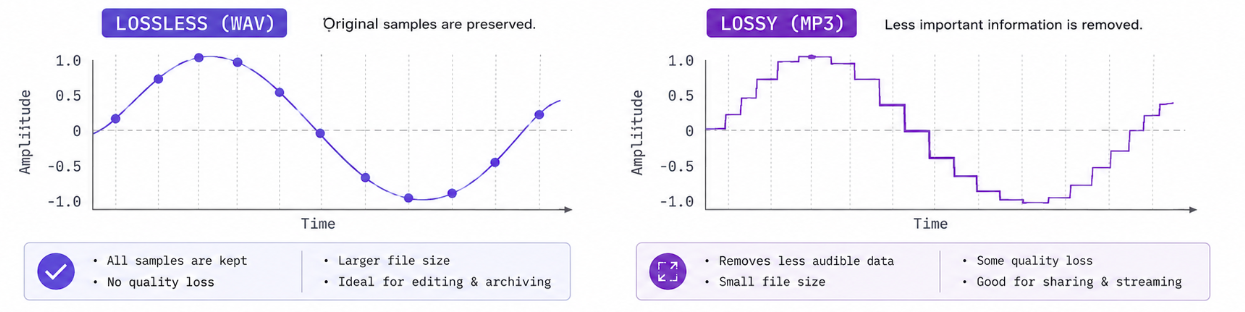
Lossless keeps the full waveform; lossy trims less salient detail to shrink the file.
WAV — the reference box for editing and handoffs
WAV, the format IBM and Microsoft hammered into shape in the 1990s, is basically a container for raw PCM samples. No compression pass means the quality story is simple: what went in is what comes out. At 44.1 kHz, 16-bit, stereo, you’re already in the neighborhood of about 10 MB per minute. Flip to the upside and compatibility is nearly universal; GarageBand, Audacity, Pro Tools, and friends will open it without another generation of loss.
That’s why WAV is the least regrettable choice when you’re handing audio to a coach with a “we might edit this later” energy, or when you know you’ll touch EQ, noise reduction, or pitch correction yourself. For tossing the same file over chat or email, though, the weight gets awkward fast — that’s when MP3 or M4A further down the list makes more sense.
MP3 — the “plays everywhere” workhorse
MP3 is old enough to feel almost vintage, which is exactly why it plays everywhere has hardened into its superpower. You trade file size against quality with a single knob: bitrate.
| Bitrate | Size (approx. 1 min) | Quality | Typical use |
|---|---|---|---|
| 128 kbps | ~1 MB | Acceptable for casual listening | Quick sharing, light archiving |
| 192 kbps | ~1.4 MB | Good | General practice recordings |
| 320 kbps | ~2.4 MB | Very good | Higher-quality archives, coach sends |
At 320 kbps, many listeners struggle to tell the result from WAV in a blind check. The catch is generational loss: every time you edit, export, and re-encode, a little more detail walks out the door — worth keeping in mind if you’ll recycle the same file through many tools.
Sending something to a vocal coach over a messenger app, or dropping a take on your phone for the commute, MP3 is still the boringly reliable option. For practice purposes, 192 kbps and up is usually plenty for someone else to judge pitch and tone.
OGG Vorbis — web-friendly, mobile is a wild card
OGG is the open format from the Xiph side of the world; the usual pairing is a Vorbis stream inside an OGG container. At similar bitrates it’s often rated slightly ahead of MP3, and it sits comfortably in Chrome and Firefox pipelines. On iOS or older gear you can still hit the occasional “why won’t this open?” moment, so if you’re picking one format for a no-drama practice habit, MP3 or WAV tends to be lower stress. OGG remains genuinely useful for web projects or specific software chains.
M4A / AAC — the lane Apple knows by heart
M4A is the filename; what’s inside is usually AAC. Apple and much of the streaming world standardized on it, and for the same subjective quality you often get a smaller file than MP3 — a nice bit-per-bit win. Double-clicking on an iPhone or Mac is frictionless. Android and Windows have caught up enough that playback is rarely an issue anymore. If you know the other person lives entirely inside the Apple ecosystem, suggesting M4A is a kindness.
WebM — what the browser likes best
WebM is Google’s open multimedia container; for audio you’ll often see Opus or Vorbis riding along. Opus stays remarkably clean for speech and singing even at modest bitrates, and its low latency fits live capture well — which is why file sizes can beat MP3 for a similar subjective result.
Why does in-browser recording lean toward WebM? Because when the MediaRecorder API encodes the mic in real time, Chrome- and Firefox-class browsers prefer Opus/WebM as their default-ish path. So if you only need to listen back in the same tab right after recording, WebM is the fastest, lowest-friction save. If you’re moving the file to a desktop machine and opening it in Audacity, exporting once to MP3 or WAV first tends to feel safer.
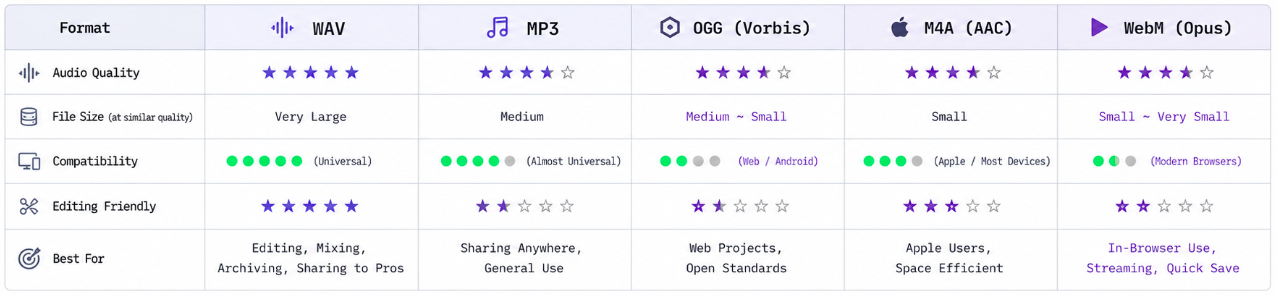
Each format trades off sound quality, size, where it opens cleanly, and how friendly it is to editing.
Picking by situation
Instead of alphabet soup, map formats to what you’re actually doing.
If you’ll listen once today and delete, Original or MP3 is usually sufficient. Saving is quick, and you don’t need archival fidelity.
If you’re sending something to a teacher or coach, weigh size and compatibility together. MP3 at 192 kbps or higher is usually enough for pitch and timbre feedback; if they’re all-in on Apple gear, M4A can save everyone a headache.
If you plan to edit in a DAW, choose WAV. EQ, compression, and pitch tools stack more cleanly when the source never went through a lossy encoder. A heavy file simply means you kept the information.
If you’re archiving takes to compare yourself six months or a year from now, WAV or FLAC-style lossless is the safer bet. Re-encoding a lossy file later wears it down a little each time.
If you’re clipping for social or YouTube, the platform will recompress anyway — still, starting from MP3 at 320 kbps or M4A around 256 kbps leaves more headroom after that first lossy step.
What happens inside Singing Recorder
Singing Recorder keeps the whole path — record through send — inside the browser. Mic audio flows through the Web Audio API and MediaRecorder; on Chrome and Firefox it’s usually encoded live as Opus/WebM and buffered in memory.
At download time, choose a filled A–D slot, then Original, MP3, WAV, OGG, or M4A. Original preserves the source bytes and uses an extension matching the detected container: a Safari recording may be MP4/AAC rather than WebM. WAV is locally encoded 16-bit PCM mono; MP3 is about 192 kbps, OGG uses Vorbis, and M4A uses AAC-LC at about 128 kbps for this mono export.
Takes are cached locally in IndexedDB. Restoration checks a roughly 24-hour expiry window from the last persistence timestamp; later saves can renew it. There is no guaranteed deletion exactly a day after capture or immediately on tab close. Delete a slot, use Delete all, or clear site data to remove cached audio deliberately. No take is uploaded for processing.
You can also upload an existing file for analysis — up to 10 minutes and 50 MB — and anything the browser’s codecs can decode is fair game. If something won’t play, transcode to WAV or MP3 and try again.
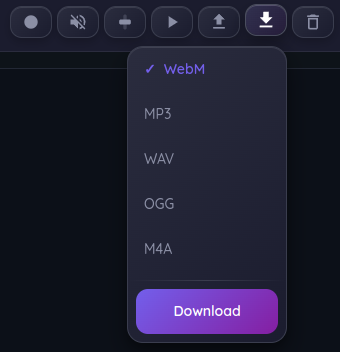
The illustration shows an older menu: its WebM entry is now Original, which preserves the actual source format. MP3, WAV, OGG, and M4A remain conversion options.
At download time, pick one of the five formats and you’re done.
Tools that pair well
Singing Recorder works fine on its own, but opening Vocal Pitch Monitor alongside lets you watch the pitch trace while you roll. Vocal Spectrum helps you eyeball harmonics and formant energy, and if you want a read on range before you hit record, a quick pass through Vocal Range Test sets the day’s baseline.
One line to remember
If you want a cheat sheet: Original for the unchanged capture/upload, MP3 for broad compatibility, WAV for later editing. Perfect format choices matter less than the habit of recording yourself sometimes and actually listening. Even once a week, saving your voice — whatever the extension — does more for growth than squeezing another half-step of codec optimization.