
You finish a practice take, play it back, and one phrase keeps sounding a little flat — even though the rest feels roughly in tune. Your ear picks up that something is off, but it is hard to say on the spot whether you are actually a semitone low or whether rhythm and breath are fooling you. Studio plugins such as Auto-Tune Pro and Melodyne still set the bar for sound quality and fine control, yet install, subscription, and DAW setup are a lot of overhead when all you want is to hear the phrase corrected once. Browser vocal pitch correction (online auto tune) fills that gap: process inside the tab without sending files to a server, then A/B the original and corrected versions at the same moment to hear the difference clearly. MusicalBoard Auto-Tune runs locally via WebAssembly. You set Key, Scale, Strength, Retune speed, and Tolerance, then use the pitch roadmap to overlay the original pitch trace (gray) and the corrected trace (pink). This article walks through what those settings mean, how to apply correction, how to use A/B playback, and where browser tools honestly stop short.
What Browser Pitch Correction Is — Processing Inside the Tab, No Upload
Many autotune online free services follow a familiar pattern: upload to the cloud, wait, download the result. That brings queue time, size limits, and reasonable worry about privacy and rights. MusicalBoard Auto-Tune does the opposite — your audio never leaves the browser. Record through Singing Recorder or upload from the header Controller, and analysis plus correction stay in the same tab. The engine uses formant-preserving TD-PSOLA pitch shifting: it tries to keep your vocal color (formants) while pulling pitch toward notes in the chosen scale, so the result feels closer to “still my voice, just more in tune” than a simple speed change.
Pitch tracking relies on a YIN-family fundamental frequency estimator. The YIN algorithm is widely used on speech and music signals; the same family shows up across vocal practice tools. Consonants and unvoiced stretches break pitch tracking, so gaps in the roadmap are normal — not a bug.
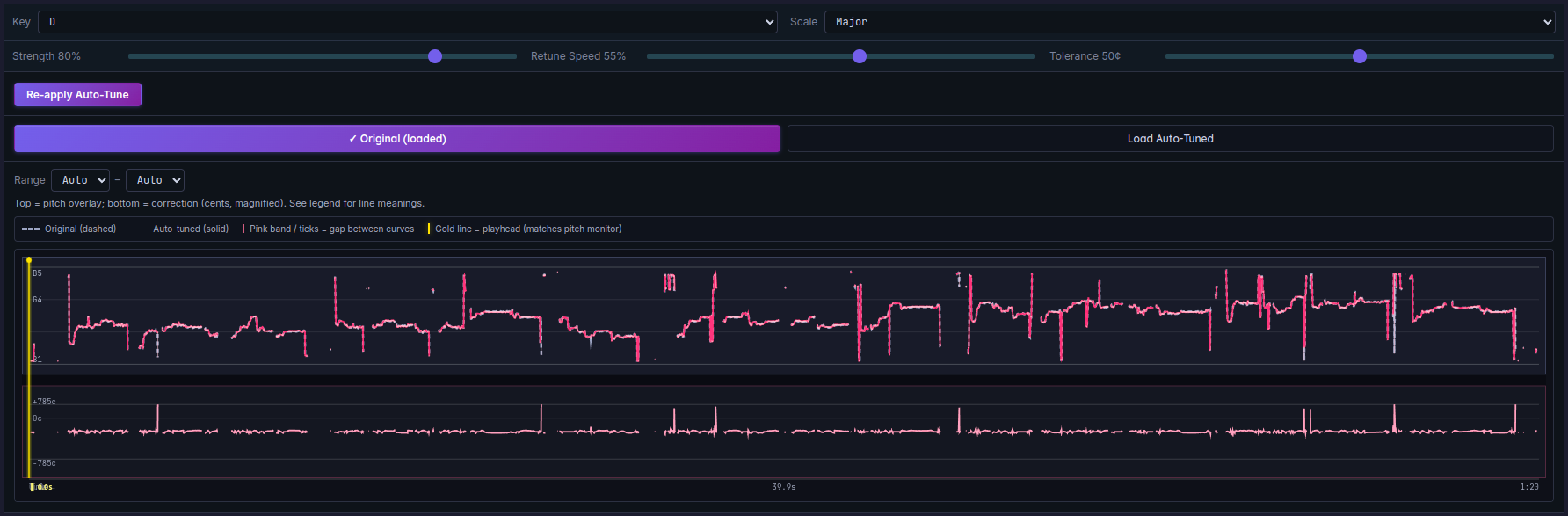
Key, Scale, and the sliders activate once a recording or upload is loaded. Match the song key and scale before you hit Apply.
Key and Scale — Defining the Target Notes
“Correcting” pitch here does not mean snapping to random notes. It means pulling toward notes allowed by the Key and Scale you choose. Get the key wrong and the result sounds wrong immediately.
Key is the tonal center of the song. A melody in C major should use Key C. If you are unsure, set Scale to Chromatic: each pitch moves to the nearest semitone without forcing a major or minor key. Chromatic is a safe first try.
Scale is the set of allowed notes. Presets on MusicalBoard include:
| Scale | Good fit |
|---|---|
| Major | Bright pop and mainstream melodies |
| Natural Minor / Harmonic Minor | Darker ballads; harmonic minor raises the 7th |
| Dorian / Phrygian / Lydian / Mixolydian | Modal color, jazz and pop variations |
| Pentatonic Major / Minor | Rock, R&B, and soul leads — fewer semitone “wrong notes” |
| Blues | Passages that use blue notes |
| Chromatic | Unknown key; semitone snap only |
For a pop cover when you know the key, pick Major or the song’s minor. When the key is fuzzy, run Chromatic once, listen, then re-Apply after you have a clearer sense of the center.
Strength, Retune Speed, and Tolerance — Same Key, Different Feel
The three sliders are not just numbers. They shape the gap between obvious robot correction and correction you can still sing along with. Think in terms of what you hear, not the manual text alone.
Strength (0–100%) — How far the center of the note moves toward the target. Near 100%, the center sits on the scale note. Vibrato is not removed by Strength. Around 60–75%, the center moves most of the way. Below 40%, most listeners only notice that you sound a bit more in tune. A practical starting point is 75%.
Retune speed (0–100%) — How fast that center arrives, and how much vibrato stays. 0% snaps and removes vibrato — the hard, robotic sound. 100% glides and keeps vibrato and short ornaments. For practice listening, stay around 50–70%.
Tolerance (0–100¢) — A dead zone around each target note. One cent is 1/100 of a semitone. Notes already inside the zone are left alone; only pitches farther out get corrected. For blues and jazz where slight flat inflection is intentional, try 30–50¢.
The first visit starts at Strength 75%, Retune speed 55%, Tolerance 25¢. The Moderate (Default) preset is those same three values, so you can return to them after moving the sliders. Gentle is lighter than Natural: Strength 30%, Retune speed 95%, Tolerance 20¢, a small nudge that leaves vibrato in place. Tight (Strength 95%, Retune speed 25%, Tolerance 10¢) sits between Moderate and Hard: notes land on pitch for a polished pop vocal, but note changes still glide instead of stepping like Hard. If this browser already saved sliders, those values load instead. Apply once, listen, and if it feels mechanical, raise Retune speed and lower Strength.

The three sliders work independently. If correction feels too strong, lower Strength; if it sounds robotic, raise Retune speed.
From Apply to A/B Compare — Step by Step
- Open Auto-Tune. In the header Controller, record with the mic the same way as Singing Recorder, or use the upload icon to load a file. Until audio is loaded, Apply Auto-Tune stays disabled (gray).
- Set Key, Scale, and the sliders, then press Apply Auto-Tune. A dry vocal is the right input — a full mix is pitch-shifted as a whole. Processing stays in the tab. A slow connection does not add queue time; a long take still takes longer to analyze.
- When processing completes, the pitch roadmap shows gray (original) and pink (pitch measured on the corrected file). Click the chart to move the playhead to that moment. Passages where the lines diverge most point to where practice will pay off.
- Use Load Original and Load Auto-Tuned to alternate playback on the same timeline. As in the upload, replay, and compare workflow, hearing both versions at the same position makes the difference obvious.
- Changed settings? Run Apply Again. Reprocessing always starts from the original, so corrections do not stack on top of each other.
- Use Download Auto-Tune on the result card and choose MP3, WAV, OGG, or M4A. Or use Save Auto-Tuned as Take, choose a slot and name, then export that saved slot from the Controller. Load Auto-Tuned previews the result; it does not replace the slot’s original file, which the Controller download menu exports.
If you close and reopen the Auto-Tune panel on the dashboard within the same session, the tuned result usually stays in place — handy for trying several Apply Again passes with different settings.
Reading the Pitch Roadmap — How Far Each Note Moved
The roadmap is not a simple “fixed” badge. It is a map of correction amount.
- Lines far apart — Original pitch was well outside the scale; strong candidates for focused practice.
- Original and corrected nearly overlap — You were already close, or the note sat inside Tolerance.
- Empty gaps — Consonants, breath, unvoiced audio; no pitch to track, not an error.
- Divergence only at range extremes — May line up with shaky intonation at the top or bottom of your range. Pair with the Vocal Range Test heatmap to find notes you use often but hit imprecisely.
Listening only to the corrected take makes everything sound “fixed.” Always pair it with the original on the same phrase — that is how you see your real pitch habits.

Gray is before correction; pink is after. Drill spread-out passages in Vocal Pitch Monitor for lasting improvement.
When It Helps — and What Not to Expect
Good fits
- Hearing quickly what a practice take would sound like corrected to a given key
- Rough pitch cleanup on a demo before you share it
- Showing students before/after correction in a lesson
- Practicing live in Vocal Pitch Monitor, then running Auto-Tune on the recording to compare target shape by ear on the same phrase
Keep expectations realistic
- Fast riffs, speech-like singing, and heavy emotional delivery — browser correction is not as nuanced as studio plugins
- Release-ready master quality — treat this tool as practice, demo, and self-check
- Locking Major when you do not know the key — pitch can get pulled to the wrong notes
Auto-Tune here is less a magic substitute for skill and more a mirror. The corrected take shows “if I were snapped to this key, it would sound like this.” Real improvement still comes from Vocal Pitch Monitor and Vocal Scales. Record problem sections with playback bar and section loop, then use the roadmap to pick only the spreads that matter — shorter loops, faster progress.
Getting Started with Auto-Tune on MusicalBoard
For a first session on Auto-Tune, record or upload one short passage — eight to sixteen bars is enough. If Key is unknown, use Chromatic Scale and Apply with Strength 75%, Retune speed 55%, Tolerance 25¢. Note where the pink line moves most on the roadmap, then alternate Load Original and Load Auto-Tuned at the same playhead and trust your ears. Re-sing those spots in Vocal Pitch Monitor; when you improve, re-record in Singing Recorder and Apply Again. Judge success by whether your raw voice is closer to the original take than before — not by whether the tuned file sounds flawless. Key, Scale, and slider values persist in browser localStorage (auto_tune_settings_v1) for your next visit. The point of free online auto-tune in the browser is not a perfect master — it is to hear and see where you drift, fast.