
When you first open MusicalBoard, it is normal to think, “There are a lot of tools here — where do I start?” Home places Vocal Pitch Monitor, Vocal Spectrum, Vocal Scales, Virtual Piano, Online Metronome, Vocal Range Test, and Singing Recorder in one workspace, while the sidebar opens a dedicated page for each tool. Neither route is inherently better. The right starting point depends on whether today's task needs several tools working together or one tool explained in depth. This article separates the Home studio, the Help (?) tour beside Fullscreen, and the sidebar's dedicated tool pages, then offers a way to simplify the workspace when arranging windows begins to consume the practice time itself.
Start with the task you want to do today
Most choices become clear after two questions:
- Do you need to watch more than one kind of information while singing?
If you need to sing a scale while watching pitch, confirm a starting note on piano, then make a short recording, begin in the Home studio. - Is one tool's scale, setting, or workflow still unfamiliar?
If you need to understand what the colors and SCORE mean in Vocal Range Test, or how Singing Recorder export formats differ, a dedicated page from the sidebar is faster.
You do not need to treat Home as a page where every feature must be open. Likewise, a dedicated tool page is not a more advanced version of Home. Home is where you connect tools during practice; a tool page is where you learn one tool and work through a focused problem.
This distinction is related to the UX principle of progressive disclosure. Nielsen Norman Group explains that an interface can reduce learning burden and errors by showing the essential options first, then letting people reveal specialized or infrequently needed options when they ask for them. The path to those secondary features and the meaning of their labels still need to be clear. The point of Progressive Disclosure — NN/g is not to make fewer features, but to make the needed feature visible first.
When the Home studio works best — connect tools without breaking the practice flow
Home is a workspace for combining tools in one tab. On a wide screen, tools open as movable, resizable windows. On a narrow screen, the tools you select stack as cards from top to bottom. This makes Home useful when you want to keep related information nearby during the same practice attempt rather than finish one tool and move to another.
Example 1: Find an unstable note, then sing it again
Suppose F4 kept falling flat in yesterday's recording. On Home, open Vocal Pitch Monitor and Vocal Scales, then sing a short pattern centered on F. Add Virtual Piano if you are uncertain of the reference note. The aim is not to make a perfect three-window layout. It is enough to see the pitch graph, hear the reference note, and restart the scale pattern.
After two or three attempts, if F4 still feels difficult, you can briefly open Vocal Range Test in the same workspace to see how nearby notes are marked today. Move to a dedicated page only when you need to interpret colors and session figures more deeply, as in What Is a Vocal Range Map?.
Example 2: Compare one phrase twice over a backing track
If you want to sing a phrase over accompaniment, open only the Home tools you need: Vocal Pitch Monitor, Virtual Piano, and Online Metronome. Recording, takes, and backing tracks stay in the Singing Recorder strip at the top of the page. Recording a Vocal Take with a Backing Track in Your Browser explains how to begin accompaniment from a cue and choose between Voice only and Mix into take.
The advantage of Home in this situation is that, as soon as you stop recording, the pitch graph and reference note are still in the same space. On the first take, listen for one thing only: perhaps the first consonant is late. On the second, move the breath slightly earlier and listen only for whether the consonant lands with the drum. Even with several tools available, the practice remains manageable when you decide to correct one thing at a time.
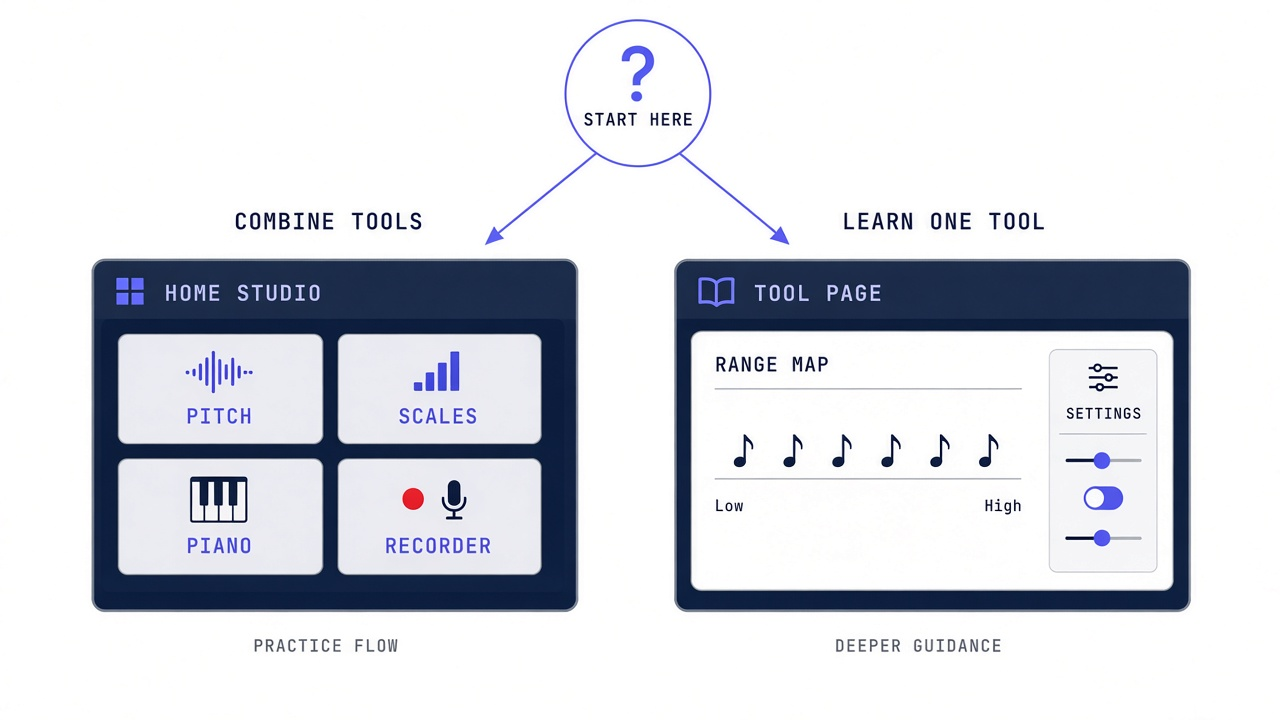
Use Home studio to connect tools, a Tool page to learn one feature, and Help (?) when the starting point is unclear.
When a dedicated tool page is faster — learn one feature and focus on it
Sidebar entries such as Singing Recorder, Vocal Pitch Monitor, Vocal Range Test, and Vocal Scales open their dedicated pages. These pages are not a workspace for arranging multiple windows. They are for following the functions and use cases of one specific tool on one screen. Sidebar navigation reloads the current tab into that dedicated page, so stop an active recording or microphone task before you move.
Start with a dedicated page in these situations:
- The tool is new to you. You want to understand what the bars and frequency axis in Vocal Spectrum show.
- You have one setting to solve. You need to choose an input device, monitor volume, or export format in Singing Recorder.
- A term is blocking you. You want to know what RANGE, SCORE, pitch cents, or BPM mean.
- You are analysing one specific problem. You need time to read a spectrum or range map for an issue such as a thin sound on high notes.
For example, on the first day you use Vocal Scales, it is often easier to learn keys, patterns, and repeats from the Vocal Scales page. From the next day onward, put Pitch and Scales side by side on Home for actual practice. In other words, use a different screen for a learning day and a repetition day.
The Help (?) tour is a guide for the first two minutes, not a manual
The ? button beside Fullscreen opens the Home studio Help tour. It opens automatically once on a first visit, and you can return to it at any time with ?. Skip, Done, and Esc close it; you do not need to complete every step. The tour is not a long tutorial that you must finish before practicing. It highlights real areas of the screen and tells you what a control does and where to look next.
The four parts most worth noticing are:
- Tool windows or Open tools — where Home tools appear after you select them
- Practice layouts — how to open common groups at once: Tone Check, Scale Practice, Range Today, and Record a Phrase
- Singing Recorder — the shared strip at the top for mic, monitoring, recording, and playback
- Sidebar or site menu — the route to a dedicated page when you need deeper guidance
If a step is not useful right now, press Skip. Help is not a test; it is a safety net for the uncertainty of a first visit. Conversely, when you repeatedly forget which icon opens a tool, returning to ? for one step is usually faster than trying random controls.
When the screen becomes too busy: keep only three roles
The Home studio is flexible, which can make it tempting to open every icon at first. When I first put pitch, spectrum, scales, piano, metronome, and range on one screen, I assumed more information would lead to better practice. Instead, I struggled to choose the next action. I was trying to watch the pitch trace, spectrum level, and metronome all at once, and was not really listening to any of them.
When that happens, do not spend more time making the windows tidy. Keep only three roles:
- One feedback tool: Vocal Pitch Monitor or Vocal Spectrum
- One reference tool: Vocal Scales, Virtual Piano, or Online Metronome
- One result tool: Singing Recorder or Vocal Range Test
For “the first note of the chorus is low,” Vocal Pitch Monitor, Virtual Piano, and Singing Recorder are enough. For “my final note shakes because of breath,” Vocal Spectrum, Online Metronome, and Singing Recorder may fit better. Closing the rest is not a step backward. It is how you narrow the next action.
On mobile, use fewer tools and check them in sequence
On mobile, selected tools stack as vertical cards, so recreating a desktop window layout usually becomes tiring. Turn on only two or three tools from Practice layouts or the top icon row. Decide what to check in the first card, then move down to the next one. If you choose Range Today, you see Range and Piano only; unselected Pitch does not appear at the top automatically.
On a small screen, treat Home less as a place to see everything at once and more as a short sequence of checks. For example: use Piano to confirm a starting note, sing once while watching Pitch, then leave a ten-second take in Recorder. Add Spectrum from the icon row only after you know what you need to inspect in that phrase.
A practical flow for moving between Home and tool pages
Here is a realistic way to work on a day when one phrase keeps feeling unstable.
First 3 minutes: make the problem smaller on Home. Open Tone Check, or open Pitch and Piano. Sing one comfortable note and the starting note of the difficult phrase. Narrow the observation from “all high notes are bad” to something like “my breath becomes rushed just before F4.”
Next 5 minutes: solve what you do not understand on a dedicated page. If you cannot interpret a range color or do not know how to set a scale pattern, open that sidebar tool page. Read the relevant explanation and change one setting. You do not need to jump between every page or read every section.
Last 5 minutes: connect the tools again on Home. Return to Home, open the two or three tools you need, and record the same phrase. After playback, leave one line of evidence: “the first note improved” or “still late.” Let that line become tomorrow's starting point.
This approach does not force you to choose Home instead of a tool page. It lets each screen do what it does well: Home connects actions, a dedicated page builds understanding, and Help shows the way back when you lose your starting point.
Make your own starting point in MusicalBoard
Open MusicalBoard Home and write down today's purpose in one sentence: “check the first note of the chorus,” “learn a scale pattern,” or “record one phrase over the backing.” Start in Home when you need two or more tools connected. Open a sidebar tool page when one tool's reading or setting is unfamiliar. If you are unsure which comes first, press ? beside Fullscreen and look only at Tool windows, Practice layouts, Singing Recorder, and Sidebar.
Opening more tools does not guarantee better practice. First choose a screen where you can see today's goal and the next action. Moving between Home and dedicated pages is not a sign that you are lost; it is a way to adjust practice to what you need.